Preparing an assessment
Designing your assessment
What software should I use?
Its up to you. Plom will need a PDF file of your assessment (PDF files if you are using multiple versions). Plom came out of the mathematics community where LaTeX is commonly used, and we provide a template below. But you can use any software you like.
What should each “question” be?
Tip
Plom defines a question as the smallest unit of independently markable material.
So if 5(a) and 5(b) can be marked by TAs Jane and Austin
simultaneously and independently, then those can be separate
questions.
You can use the label field in the specification (see Creating a “spec file”) to
display the two questions as “5(a)” and “5(b)”.
If you enable shared pages (see below), there can be more than one question on a page; any shared pages will be duplicated during marking (that is, each marker will get their own copy for annotating). Any questions sharing a page will be drawn from the same version.
Questions can also span multiple pages, even in a multi-versioned assessment.
Be careful with your margins
Plom needs space on the corners of every page to stamp QR-codes and a gap in the middle of the page for general information. One way to check your margins is to upload your PDF file(s) to Plom, and use the “Mock” feature to quickly mock-up how your paper will look with QR codes.
A template assessment
Note
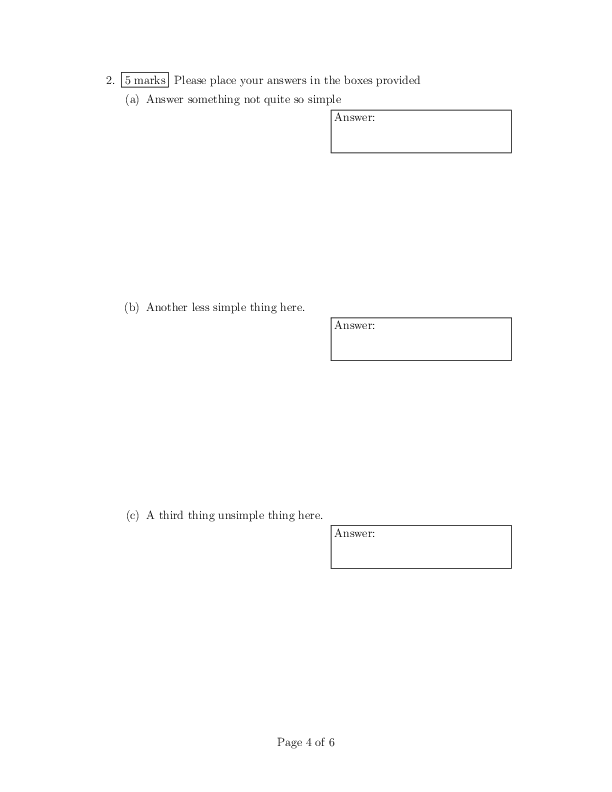
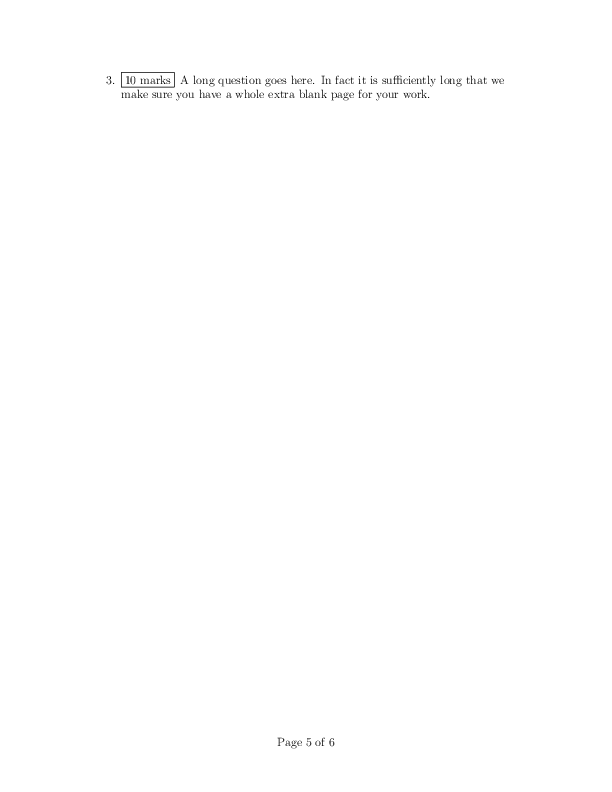
The example exam (PDF file) consists of 6 pages and 3 questions:
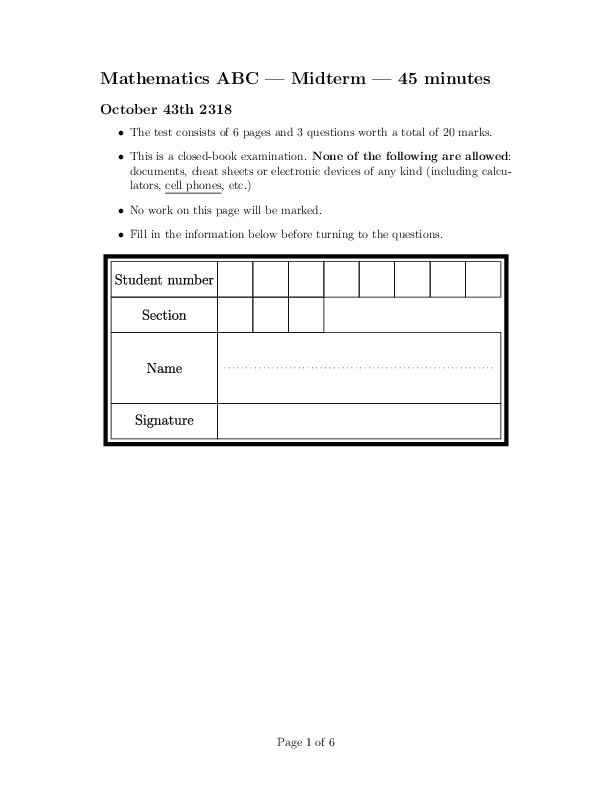


page 1 is an “ID-page” on which students write their name and ID-number.
page 2 consists of further instructions to students and also a formula sheet; students should not write anything on this page.
page 3 is question 1 worth 5 marks,
page 4 is question 2 worth 5 marks, and
pages 5-6 are question 3 worth 10 marks.
You can download the LaTeX source version 1. The second version of the same exam has exactly the same structure, just different question text: PDF version 2, source version 2. To compile these files you will also need the ID Box image.
Creating a “spec file”
The specification is stored as a TOML file, and describes the structure of your assessment (which questions on are on which pages; how many marks is each question worth, etc). You can use the Plom interface to help you create a specification, by answering a few questions, or you can prepare one in a file on your own computer.
The spec.toml for the template assessment above looks like:
name = "plomdemo"
longName = "Midterm Demo using Plom"

numberOfVersions = 2
numberOfPages = 6
totalMarks = 20
numberOfQuestions = 3
idPage = 1
doNotMarkPages = [2]

[[question]]
pages = [3]
mark = 5

[[question]]
pages = [4]
mark = 3

[[question]]
pages = [5, 6]
mark = 10
There are other fields which can be added to this file, for example,
each question can have label = ... to specify something other than
the “Qn” default.
The file can also contain comments starting with # ...
Tip
Shared pages are a new experimental feature: you can enable them by
explicitly putting allowSharedPages = true in your specification.
Tip
Another experimental feature: adding bonus = true to a question
means it does not count toward the totalMarks. No one has used
this yet; highly experimental: you have been warned.
Building the database of papers
After creating and uploading your assessment specification, you can use the management web interface to upload “source PDFs” of your assessment, optionally upload a classlist, build a database of papers and create the actual QR-coded PDF files to print for you assessment.
Technical docs
For scripting, the command-line tool plom-cli can be used.
On legacy servers, the command-line tool plom-create is used for most tasks related starting a new assessment.
For scripting or other advanced usage, you can
import plom.createin your own Python code. See plom.create module.